


A beautiful 3D rendering is not proof that the exact furniture piece is available to buy. A high-end furniture visualizer app for iOS can help you picture a piece in your room, but its real value depends on more than appearance: accurate scale, useful customization, and a clear connection between the displayed model and a purchasable item all matter.
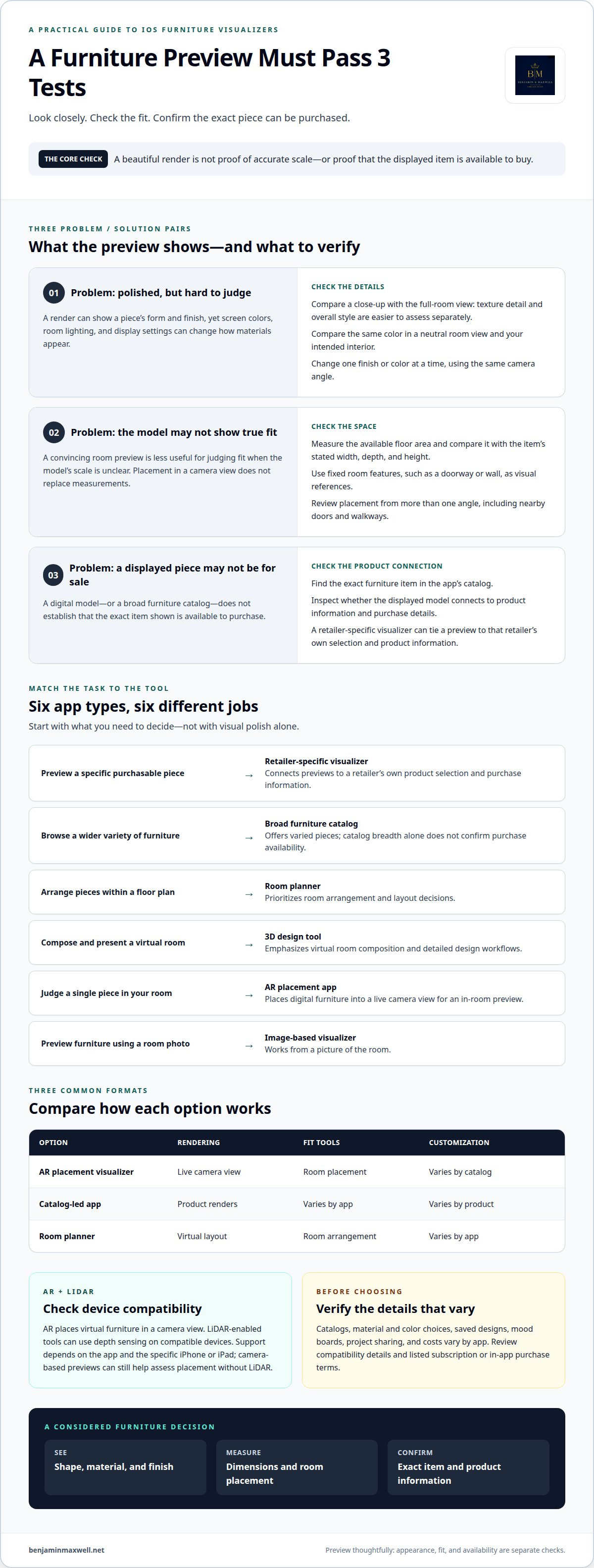
A convincing preview should help answer two practical questions: will the furniture fit, and can you order the piece? Rendering quality helps you assess its form and finish, while room measurements show whether it suits your space. A digital model alone does not establish that the item is available to purchase.
This comparison explains how to assess iOS visualizers for 3D rendering, room fit, customization, and purchase availability. You’ll learn what each capability can show, where a preview has limits, and how to choose an app that supports a more considered furniture decision.
Key Takeaways
- Judge a 3D preview by how clearly it shows a piece’s shape and scale, not by visual polish alone.
- Compare how each app represents materials, lighting, and customization before relying on its room preview.
- Use the comparison criteria to narrow your iOS options, including which tools support AR or LiDAR.
- Distinguish a visualized piece from one available to purchase, then explore Benjamin & Maxwell’s In Home Visualizer for selected furnishings.
3D furniture visualization and rendering
A 3D render places a digital furniture model into an interior view; augmented reality overlays it on live camera photos. Compare the result with the room’s layout, then judge whether the piece’s scale, shape, and colors remain clear from different angles.
AR and LiDAR Support
AR apps place virtual furniture in a camera view, while LiDAR-enabled tools can use depth sensing on compatible devices. Support depends on the app and your specific iPhone or iPad, so review the app’s compatibility details before choosing. Requirements vary, and no single iOS version or device works across every visualizer.
To preview placement, open the room view, scan the intended area if prompted, and position the model. A camera-based preview can still help you assess placement without LiDAR.
Catalog Size and Designer Features
Catalogs vary in breadth and detail. One app may offer a wide selection, while another focuses on fewer pieces with more finish choices. Features such as selectable materials, colors, and viewpoints depend on the catalog. Saved room designs, mood boards, and project sharing are also app-specific, so choose a tool that supports the workflow you need.
There is no single price for iOS furniture visualizers. Costs and in-app purchases vary by app and its paid features, so review the listed subscription or purchase terms before choosing.
Room Visualization Accuracy
Accuracy depends on both the furniture model and the room view. A refined render may show upholstery and color convincingly, but it is less useful for judging fit if the model’s scale is unclear. Compare the piece with fixed features such as a doorway or wall, and view it from more than one angle.
Measure the available floor area, then use the app’s room-placement controls to position a comparable piece. A visual preview helps you assess the layout, but it does not replace checking the furniture’s dimensions.
| Option | Rendering | Fit tools | Customization |
|---|---|---|---|
| AR placement visualizer | Live camera view | Room placement | Varies by catalog |
| Catalog-led app | Product renders | Varies by app | Varies by product |
| Room planner | Virtual layout | Room arrangement | Varies by app |
Choose an option whose room-fit tools, rendering detail, and customization suit the decision you need to make.
Materials, lighting, and customization
Materials, colors, lighting, and dimensions can look different in app renders. To assess realism, compare the same furniture image under consistent room lighting and placement.
Furniture Material Realism
A furniture model’s appearance depends on the detail shown in its digital surface. Smooth leather, woven upholstery, polished metal, and visible wood grain each create different visual cues. Compare close-up views with the full-room image: the wider view shows overall style, while a closer angle reveals how clearly the texture is represented. Catalogs vary, so material choices may differ between apps.
Color and Lighting Representation
Screen colors can shift with room lighting, display settings, and the app’s rendering. Pale fabric may look warmer beside a sunlit window than under evening lamps. Compare the same color in a neutral room view and your intended interior to see whether the render preserves its character. Treat the image as a visual guide, not an exact color sample.
Customization depends on the catalog. Some visualizers let you change finishes or colors, while others show a fixed version of each piece. Switch one option at a time and compare renders from the same camera angle. This helps distinguish a material change from a lighting effect.
Use the app’s floor plan or room view to assess placement, then compare the model with the item’s stated measurements. A convincing render cannot establish fit if its scale is unclear. Check the width, depth, and height against your space, including nearby doors and walkways. Camera vision and room lighting affect the preview, so assess the furniture from more than one position.
To explore furniture styles in a room setting, view pieces in your home.
What are the best high-end furniture visualizer apps for iOS?
The right choice depends on whether you want to preview a specific purchasable piece, arrange a room, or explore finishes. Compare the app’s furniture catalog, room tools, customization options, and links to product details. A polished image alone cannot answer all of these needs.
These six app types serve different purposes:
- Retailer-specific visualizers: Useful for previewing pieces tied to a retailer’s own product selection and purchase information.
- Broad furniture catalogs: Offer a way to browse varied pieces, though catalog breadth does not establish that every item is available to buy.
- Room planners: Prioritize arranging furniture within a floor plan, making them suited to layout decisions.
- 3D design tools: Emphasize virtual room composition and presentation, with workflows geared toward detailed design work.
- AR placement apps: Put digital furniture into a camera view, helping you judge a piece in its intended setting.
- Image-based visualizers: Use room photos to preview furniture, making them useful when you want to work from a picture.
For a purchase decision, begin with the retailer-specific visualizer. It can connect the displayed model with product information, while a general room planner may focus chiefly on arrangement. For a broader decorating study, a room planner or 3D design tool may offer a more suitable workspace. An AR placement app is a practical choice for judging a single piece in context.
Before choosing an app, follow three checks: find the exact furniture item in its catalog, inspect the available views and finish choices, then locate the product details linked to the preview. If a model appears only as a virtual object, treat it as a design reference, not proof that it is available to buy. This distinction matters when you want to purchase the displayed piece.
Choose an app that suits your next decision: finding a purchasable item, testing a room layout, or comparing styles. The best high-end furniture visualizer app for iOS brings the catalog and room-viewing tools you need together.
Which iPhone and iPad furniture visualizer apps support AR and LiDAR?
AR and LiDAR are separate capabilities. An iOS visualizer may place a virtual chair in the camera view without LiDAR, while a LiDAR-enabled workflow can use depth information from a compatible device. Support depends on both the app and the iPhone or iPad model.
Compatibility varies between furniture apps. Some focus on camera-based AR placement; others may use LiDAR on supported devices. Compare the app’s stated requirements and features with your iPhone or iPad model, then open the room view to see which placement options are available.
How to compare AR and LiDAR
Start with the task. For a quick preview, camera-based AR lets you position a virtual sofa or table in the room view. LiDAR may help with depth-aware placement, depending on the app and device. AR support alone does not indicate LiDAR support, so compare those features separately.
Use this practical sequence before relying on a preview:
- Identify your device: Note the iPhone or iPad model, since compatibility can vary by hardware.
- Review app requirements: Look for explicit AR and LiDAR support, plus any stated iOS version requirement.
- Test the room view: Place a chair or table, then observe how it appears as you change position.
- Assess the result: Use the preview to study placement and scale, not as a substitute for product dimensions.
LiDAR can provide depth information, but it does not make every furniture model accurate. The digital model, room conditions, and device compatibility all shape the result. A camera-only AR preview can still help with visual placement; LiDAR matters when both the app and device support it.
For an in-room preview of selected furnishings, explore the In Home Visualizer.
Benjamin & Maxwell: In Home Visualizer
Benjamin & Maxwell’s In Home Visualizer helps you picture selected furniture in your living space before making a decision. It is a practical next step after comparing apps and deciding what matters, especially when you want to consider a particular piece in your own room. Use the preview to think about how it fits your layout, then review the item’s details as part of your purchase decision. The tool can show furniture such as Cattelan Italia Furniture, alongside other home offerings. A room preview can inform your judgment, but product details remain essential when deciding whether a piece suits your needs.
For help with a furniture or visualizer inquiry, contact Benjamin & Maxwell.
Make your next furniture decision with confidence
Let your room’s proportions and the way you use it guide your next step. A high-end furniture visualizer app for iOS can help you imagine a piece in place, while your priorities determine whether it belongs in your home. Consider how it fits into your interior, not just how it looks on a screen.
Benjamin & Maxwell offers the In Home Visualizer, Cattelan Italia Furniture, and Daum Crystal. If you’re ready to explore a piece for your home or discuss a visualizer inquiry, contact Benjamin & Maxwell.
Choose carefully, and make room for furnishings that feel right in your space.
Benjamin & Maxwell: Explore Furniture and Home Decor
Benjamin & Maxwell offers an In Home Visualizer alongside furniture and home décor, so you can continue exploring pieces for your space after comparing iOS visualizer apps.
Turn to Benjamin & Maxwell when you’re ready to browse Cattelan Italia, Bonaldo, Per/Use and Italia lounge furniture, sofas, chairs, tables, consoles, TV stands, wall units and outdoor furniture. Its selection also includes Daum Crystal, Kosta Boda glassware and home decor, Schuller home decor, and glass bowls, vases, statues and figurines.
Frequently Asked Questions
Are the furniture pieces shown in these apps actually available for purchase?
Some visualizers show products that are for sale, but a room preview alone does not establish that a piece is available to buy. Retailer-specific tools can connect displayed items to that retailer’s selection, while general room-planning apps may use models for layout concepts. Benjamin & Maxwell’s In Home Visualizer lets users select furniture and décor from its catalog. Use the product listing, not the room image, as your purchase reference.
Can these apps really help me avoid costly design mistakes?
Yes. A room preview can help you spot potential issues before committing, such as a table crowding a dining area or a sofa obstructing a walkway. Use the visualization alongside actual product dimensions and room measurements. For example, compare a table’s stated width with the space needed for chairs. A digital view can inform your decision, but measurements remain essential.
How does AI enhance the furniture visualization process?
AI can support visualization by helping interpret room images, organize design choices, or generate suggested arrangements. Those capabilities depend on the particular app, and they should not be assumed from an AR or 3D feature alone. Use generated suggestions as starting points, then assess each item’s proportions, materials, and practical placement. The final choice should reflect your room and the product details.
Is there an app that helps you decorate your room?
Yes. Room-decorating tools can let you work from a room photo, place selected furnishings, and save a scene for later review. Benjamin & Maxwell’s In Home Visualizer combines photo uploads with AR and interactive 3D placement. For example, you can arrange a décor item in a living-room image, adjust its position, and keep the scene in a photo gallery.
What is the best app to help me decorate my house?
The best app is the one suited to your decorating task. Choose a room planner for arranging a broader layout, or a product-focused visualizer when you want to consider specific furnishings. Benjamin & Maxwell’s In Home Visualizer supports photo-based previews, AR, 3D item movement, and saved scenes. Those features suit a shopper who wants to compare selected products within a home setting.
Which premium furniture brands offer iOS apps to preview products at home?
Benjamin & Maxwell offers furniture from Cattelan Italia and Bonaldo, along with its In Home Visualizer for viewing selected products in a home environment. This does not mean either furniture brand provides its own iOS app. For a brand-focused preview, identify the retailer’s visualizer and the products it shows, then consult the relevant product details when considering a purchase.

Article by
Spencer Kay
Spencer is the founder and CEO of Benjamin & Maxwell and has created the most advanced technology-based website in the furniture industry. He has extensive experience in both technology and business operations having started a number of technology companies. Spencer holds a BA Degree in Economics and an MBA in International Business
Disclaimer
Benjamin & Maxwell does not intend for any of our products to be used for any specific purpose.


