


A “free” label doesn’t tell you what you can actually try. A free visualizer may offer a preview without including every comparison or saving option, so whether the In Home Visualizer app is free to use depends on the access and features available to you.
You may want to see an item in your own room, compare options, or save a scene to revisit. The In Home Visualizer supports uploading a room photo, selecting products from its catalog, viewing them in the space, and saving visualized scenes to a photo gallery. Its pricing is not specified, so these features alone can’t confirm whether use is free.
This guide explains what you can compare, how access and image quality shape the experience, and what to consider when saving a design. It also clarifies what a visual preview can show, so you can use it as a considered first step before making choices for your home.
Key Takeaways
- Understand what “free” access can mean, and which registration details may shape the styles and options you can explore.
- Learn how to use your own room photo to compare furnishings and finishes, and why a clear, well-lit image matters.
- See what to consider when saving or revisiting designs, including how image quality can affect the preview.
- Use a visualizer as an early planning aid while keeping real measurements and material samples in view for final decisions.
Registration and access to visualizer styles and options
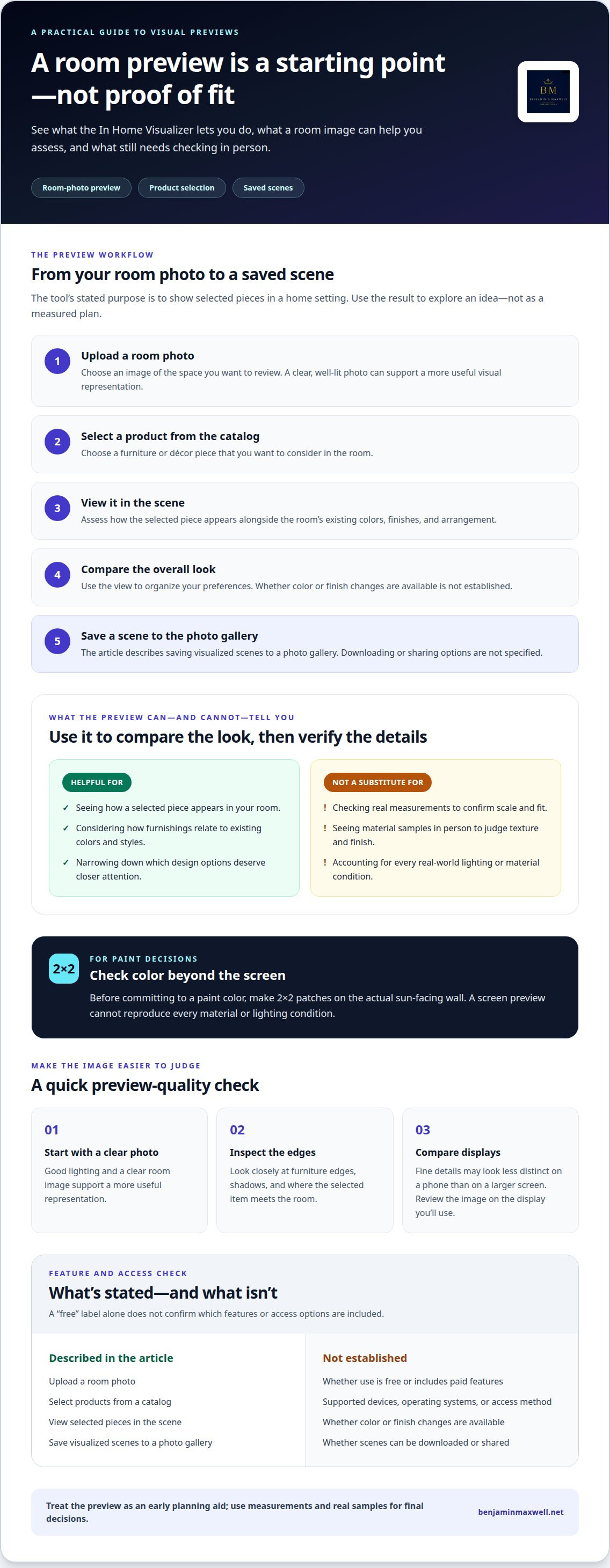
The In Home Visualizer lets you preview selected pieces in your living space. Upload a room photo, choose an item from the catalog, and view it in the scene. For a kitchen, you might consider how a table or décor piece appears alongside existing colors and finishes. Treat the result as a visual aid, not a measured plan.
Are there in-app purchases or paid features in In Home Visualizer? Its defined purpose is showing how specific pieces fit within living spaces. That description doesn't establish separate purchases or paid features.
What do users say about In Home Visualizer's pricing and app functionality? The established function is a visual preview of specific pieces in a home setting.
| Access option | What it helps assess | Details to distinguish |
|---|---|---|
| Room-photo preview | How a piece appears in your space | Image-based placement |
| Product selection | Different furniture choices | Which pieces the visualizer displays |
| Color comparison | How colors relate to the room | Whether color changes are available |
| Finish comparison | How finishes affect the overall look | Whether finish choices are available |
| Browser or device access | Where you can open the tool | Supported operating systems and access method |
Which devices and operating systems support In Home Visualizer? Its supported devices and operating systems aren't established by its stated purpose. The practical distinction is whether the tool opens in your browser or through a compatible app.
Is In Home Visualizer available in the United States? The article addresses U.S. readers, and the tool’s stated purpose is to preview pieces at home. Access method, rather than a named regional feature, shapes how you begin.
How do you use In Home Visualizer to preview products in your home? Choose a room image, select a piece, and view it within the space. Compare the composition with existing colors and styles before making decisions. Choose the option that lets you assess the room and product details most relevant to your decision.
What a free visualizer can help homeowners compare
A virtual visualizer can help homeowners preview design choices before a remodel. Upload a clear, well-lit kitchen photo, then compare cabinet finishes or countertop colors in the room. A useful tool updates the render as you change an option, making contrast between choices easier to judge. The image offers a visual comparison, not a final specification.
Consider the questions behind each comparison. Does a lighter finish sit comfortably beside the floor? Does a darker countertop create the contrast you want with the cabinets? For furniture, compare how a selected piece appears against the room’s existing colors and arrangement. These views help organize decisions, while measurements and material samples remain important for choosing confidently.
Are there alternatives to In Home Visualizer with free visualizer features? Yes. In May 2026, free-tier tests covered 18 scenes across six free apps, offering homeowners other virtual tools to consider. The useful comparison is what each tool lets you upload, render, and save, rather than the word “free” alone.
- Compare finishes: View cabinet and countertop combinations in the same kitchen photo.
- Assess contrast: Look at how a finish relates to existing floors, walls, and furnishings.
- Review the image: Use a clear, well-lit photo to support a higher-quality, more accurate representation.
Before committing to a paint color, make 2x2 patches on the actual sun-facing wall. A screen preview cannot reproduce every material or lighting condition. Use the virtual render to narrow your preferences, then compare real samples and measurements before making a final choice. A visualizer is most useful when it helps you identify which options deserve closer attention, not when it stands in for the room itself.
Free app resolution and saving options
A generated preview is only as useful as the image you can inspect. Begin with a clear room photo, then look closely at edges, shadows, and how the selected piece sits within the interior. On a phone screen, fine details may appear less distinct than on a larger display. Compare the preview on the device you’ll use to review your choices.
Image detail can help you judge color and composition, but it does not establish whether an item will fit. A room preview can help narrow your preferences; it cannot replace checking measurements or seeing materials in person. Use measurements and samples for decisions that depend on scale or texture.
The In Home Visualizer lets you save visualized scenes to a photo gallery. That gives you a way to keep a view of your selected furniture or décor for reference. The available information does not specify whether scenes can also be downloaded or shared, so don’t assume those are included.
- Review detail: Zoom in on furniture edges and the boundary between the item and the room.
- Compare displays: View the same preview on a phone and a larger screen to assess clarity.
- Plan to revisit: Look for a way to preserve a preferred version before testing another color or arrangement.
- Keep a reference: If image download or sharing is available, use it to compare options alongside measurements and material samples.
Before generating another version, decide what you want to learn from it. For example, change one finish while keeping the living room photo constant. That makes the contrast easier to judge and keeps each preview useful. The best saving approach depends on whether you need to return to an editable design, keep a still image, or share the idea for feedback.
What is the In Home Visualizer app?
The In Home Visualizer is a photo-upload tool for previewing furniture and home décor in a residential space. Upload a room photo, select an item from the catalog, and view it in the scene. Whether the In Home Visualizer app is free to use is a separate question: pricing information is not specified.
Its features bring together photo-based visualization, augmented reality, and a 3D product viewer. With the 3D view, you can rotate, move, and place an item within the room scene. The AR feature lets you view selected products in your home environment. These different views give you ways to consider an item before deciding whether it suits your space.
A simple workflow keeps the process clear:
- Upload: Add a photo of the room you want to consider.
- Select: Choose furniture or home décor from the catalog.
- View and adjust: Examine the item in the room, then use the 3D viewer to reposition or rotate it.
- Save: Preserve a visualized scene in the photo gallery for later reference.
For example, you could place a chair in a living room photo, rotate its 3D view, and compare its position with the room’s arrangement. A saved scene can help you return to that composition while considering other choices. If you're asking whether the In Home Visualizer app is free to use, distinguish that access question from the tool’s capabilities. Its described functions explain what you can do, not the terms of access.
Use the visualizer to explore possibilities, then rely on measurements and material samples for decisions that require physical detail. A digital scene can support planning, while the room itself remains the reference for scale, placement, and finish.
Benjamin & Maxwell: Daum Crystal
Benjamin & Maxwell brings the In Home Visualizer together with a considered selection of home furnishings and crystal. Use the visualizer to see how specific pieces may fit within your living space, then explore furnishings such as Cattelan Italia Furniture or Daum Crystal when you’re ready to consider an individual piece. The preview can help you picture a furnishing in context; it remains a planning aid rather than a substitute for measurements or material samples. For a different decorative accent, Kosta Boda Glassware offers another category to explore. Whether you’re refining a room or considering a distinctive piece for your home, continue at your own pace. Contact Benjamin & Maxwell to begin a conversation.
Turn a Preview Into a Thoughtful Choice
Whether the In Home Visualizer app is free to use matters, but you can still begin by deciding what you want a room to feel like. Choose the piece or detail that would most influence the space, then use the visualizer to explore how it appears in the room. Your preferences guide the final choice.
Benjamin & Maxwell offers the In Home Visualizer alongside Cattelan Italia furniture and Daum crystal. Upload a room photo, select products from the catalog, and explore how they may look in your space. Save a visualized scene to a photo gallery as you consider which pieces suit your home.
For a closer look at the available offerings or to discuss your next step, contact Benjamin & Maxwell. Begin with the idea that feels right, and let your home take shape one considered choice at a time.
Benjamin & Maxwell and the In Home Visualizer
Benjamin & Maxwell offers the In Home Visualizer alongside furniture and home decor, giving you a way to explore how pieces may fit your space. Check the app’s own details for whether it is free to use.
When you’re ready to consider furnishings for your home, Benjamin & Maxwell offers sofas, chairs, dining room tables, consoles, TV stands, wall units, cocktail tables, outdoor furniture, glassware, and décor.
Frequently Asked Questions
Can I upload my own photos, sketches, plans, or under-construction spaces?
Upload a room photo, select furniture or home décor from the catalog, and view it in that setting. The visualizer is designed around room photos rather than sketches or floor plans. For an unfinished space, a photo of the area as it currently appears can provide a starting point, but the preview does not supply measurements or a finished-room specification.
Is the In Home Visualizer app free to download and use?
The In Home Visualizer lets you preview furniture and décor, but pricing information is not specified. Its listed features therefore cannot confirm whether it is free to download or use. Keep visualization separate from purchasing: previewing a piece helps you consider how it may look in your home, while buying it is a distinct decision.
Does In Home Visualizer require an account or subscription?
The In Home Visualizer workflow is to upload a room photo, select an item, view and adjust it, then save the scene to a photo gallery. The available information does not specify an account or subscription requirement. Saving a scene is a listed feature, but it does not establish whether an account is needed to preserve or revisit it.
Does In Home Visualizer require uploading photos or sharing camera access?
The In Home Visualizer supports photo uploads and also includes augmented reality for viewing selected products in a home environment. These are different ways to visualize an item. The available information does not specify whether AR requires camera permission, so uploading a room photo remains a clear alternative.

Article by
Spencer Kay
Spencer is the founder and CEO of Benjamin & Maxwell and has created the most advanced technology-based website in the furniture industry. He has extensive experience in both technology and business operations having started a number of technology companies. Spencer holds a BA Degree in Economics and an MBA in International Business
Disclaimer
Benjamin & Maxwell does not intend for any of our products to be used for any specific purpose.


