

What if you could preview a furniture choice in your own living room before deciding whether it belongs there? Using augmented reality to design living room layouts can help you picture a piece in your space, rather than relying only on product images taken in another setting. A room-photo preview is useful for exploring ideas, but practical details still need to be checked.
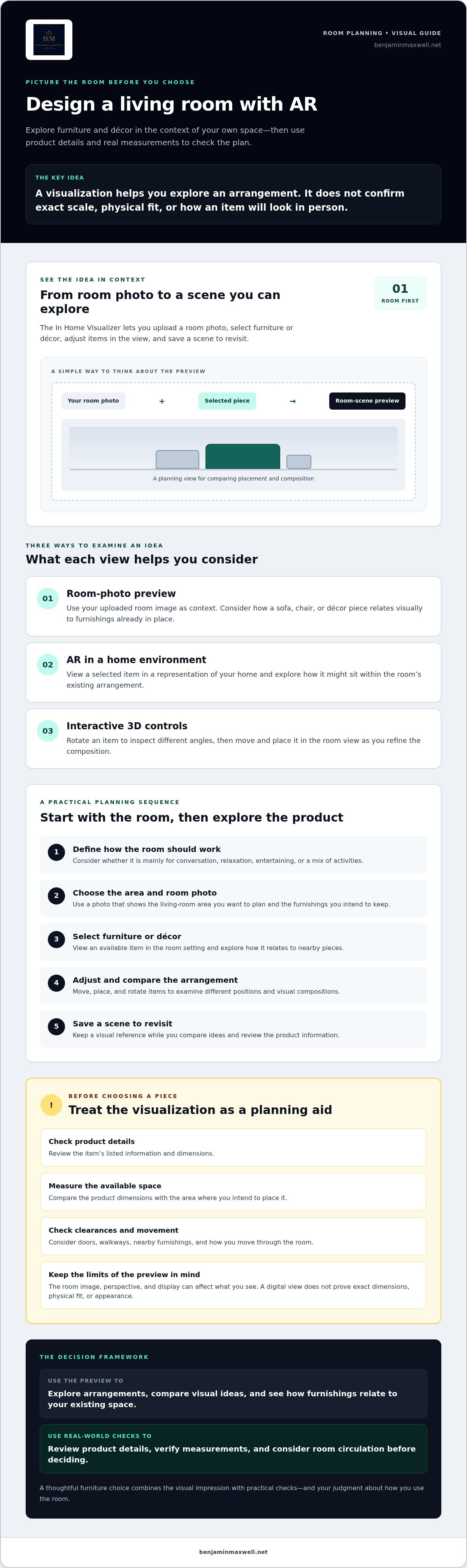
Benjamin & Maxwell’s In Home Visualizer lets you upload a room photo, select furniture or décor, then move, place, and rotate items in an interactive view. Use it to explore arrangements, compare visual ideas, and save a scene to revisit. Before choosing a piece, check its product details, measure the available space, and consider how you move through the room. Treat the visualization as a planning aid, not confirmation of exact scale or appearance.
Key Takeaways
- Using augmented reality to design living room arrangements can help you assess how furnishings relate to your existing space, beyond what an isolated product image shows.
- Start with the room’s purpose and the arrangement you want to explore, then consider individual pieces.
- Photo previews, AR viewing, and interactive 3D controls offer different ways to examine a living-room idea.
- Compare visual impressions with product details and measurements taken in your room before choosing furnishings.
Why use augmented reality to design a living room?
AR room visualization places selected furnishings within a digital representation of your home, helping you consider how they might look in your space. Instead of judging a sofa, chair, or decorative object against a studio backdrop alone, you can see it alongside your existing furnishings and arrangement. More broadly, Augmented Reality combines digital content with a view of the physical world.
The value of using augmented reality to design living room layouts is not that it makes the decision for you. It gives you another way to explore options. A room-photo preview can help you consider whether a piece suits the composition and whether furnishings or décor work well together. Benjamin & Maxwell’s In Home Visualizer lets you view selected items in a home environment, adjust their placement, and save a scene to revisit.
What a living-room AR preview can help you assess
Use a preview to see how a furnishing relates visually to the room’s existing pieces and arrangement. For example, try a sofa in different positions or see how a decorative accent looks beside furniture already in place. Compare the effect on the overall composition, then consider whether each arrangement supports how you use the room. The preview can help you narrow down ideas, but your judgment still matters.
What an on-screen visualization cannot confirm
A digital view is a planning aid, not proof that an item will fit or look exactly as shown. The room image, perspective, and display can affect what you see. Measure the intended area and compare it with the item’s listed dimensions. Check clearances around doors, walkways, and nearby furnishings as well.
How the In Home Visualizer brings living-room ideas into your space
The In Home Visualizer gives you a straightforward way to explore a room-planning idea: upload a photo of your living room, select furniture or décor, view it in the home environment, adjust its placement, and save the scene. The tool combines photo-based visualization with AR and 3D interaction, so you can consider a piece in context and examine it from different angles.
The In Home Visualizer combines a room-photo preview, augmented reality, and interactive 3D controls to help you explore furnishings in your home environment. The photo provides context, AR presents a selected item within that context, and 3D interaction lets you rotate, move, and place it in the room view.
From room photo to adjustable product view
Start with a photo that shows the living-room area you want to plan and the furnishings already there. Select an available furniture or décor item from the catalog and view it in the room setting. Move and place it in the view to explore how its position relates to nearby pieces. This makes it easier to assess a possible arrangement than relying on an isolated product image.
When using augmented reality to design living room arrangements, keep the different views in perspective. A photo-based preview uses your uploaded image as the setting, while AR lets you view the selected product in a representation of your home. Neither confirms exact dimensions or physical fit, so check both separately.
Using 3D interaction and saved scenes
The 3D viewer provides another way to inspect a piece. Rotate it to look at different angles, then move and place it within the room view as you refine the composition. If a scene is worth considering again, save it to your photo gallery. You can return to that reference while comparing ideas and reviewing product information.
Explore the In Home Visualizer to see how it can support your room-planning process. Use a saved scene as a visual reference, then check the product details and measure your space before making a decision.
How to design a living room with AR, step by step
A useful AR plan starts with the room, not the product. Decide how you want the living room to function, note which furnishings you plan to keep, and think about how you want to arrange the space for daily use. Then use the visualization to explore options, while relying on measurements to check fit.
Prepare the room and explore furniture options
- Define the room’s purpose. Consider whether it’s mainly for conversation, relaxation, entertaining, or a mix of activities. This gives you a practical way to assess whether a piece suits your needs.
- Choose a representative photo. Upload a clear image of the area you want to plan, with the existing furnishings visible. A photo that shows the intended placement and nearby pieces gives you useful context for considering new items.
- Select furnishings and décor to explore. View available options in the room setting. Look at how each piece relates to nearby items and whether the arrangement feels balanced and cohesive.
Refine, compare, and keep a preferred direction
- Adjust the composition. Move, place, or rotate items in the interactive view to consider alternative arrangements. When using augmented reality to design living room ideas, treat the on-screen view as a way to compare visual possibilities, not as proof of scale or fit.
- Compare and save. Use the separate comparison tool to compare up to 4 products at one time. Save a promising visualization to your photo gallery so you can return to it while reviewing product details.
- Verify measurements. Measure the room and check the product dimensions separately. Confirm that the item suits its intended location and leaves enough space around walkways and existing furnishings.
When weighing a furniture choice, use the room plan alongside the product information. To explore arrangements in your own space, visit the In Home Visualizer.
Turn your AR living-room concept into a considered furniture choice
A visualization can clarify what appeals to you, but a considered choice also accounts for the room’s purpose, the product’s details, and the space available. Before settling on a piece, ask:
- Room purpose: Does the furniture support how you use the living room, whether for conversation, relaxation, or entertaining?
- Visual preference: Does the piece work with the furnishings and arrangement you plan to keep?
- Product details: Have you reviewed the item’s listed materials, finish, and specifications rather than relying only on its digital appearance?
- Measured space: Do the product dimensions suit the intended location and leave suitable room around nearby furniture and walkways?
Using augmented reality to design living room arrangements can help you evaluate visual relationships, but it is not an interior-design consultation or confirmation of fit. Treat each view as one source of information, alongside product details and your own measurements.
What to verify before choosing a piece
Measure the intended location and compare your measurements with the product’s listed dimensions. Review the product information independently, too. A visualization can help you consider how an item appears in the room, but it cannot confirm its material, finish, exact colour, or physical specifications.
| Method | What it helps you assess | What to verify separately |
|---|---|---|
| Product image | The item’s presented appearance | Dimensions and product details |
| Room visualization | How it may relate to your room and furnishings | Actual colour, scale, and fit |
| Measurements | Whether it suits the available space | Product specifications and clearances |
Continue exploring with a clearer room concept
Revisit saved scenes and narrow your options based on the room’s needs. Browse furniture and home décor that suit your developing concept, then explore the room visualizer to consider selected pieces in your home environment.
Shape your next living-room choice with confidence
Using augmented reality to design living room possibilities gives you a way to consider furnishings in the context of your own space before deciding. A room photo helps you explore how selected furniture and décor might relate to what you already own. AR viewing and interactive 3D controls let you examine and adjust the composition, and you can save visualized scenes to your photo gallery to revisit later.
Keep visual impressions separate from practical checks. A digital preview can support your judgment, but it does not confirm exact dimensions, physical fit, colour, or finish. Review product details and measure your room before choosing a piece.
Ready to explore ideas in your own space? Use Benjamin & Maxwell’s In Home Visualizer to consider selected furnishings in your home environment, then make your choice with the product details and room measurements in hand.
Frequently Asked Questions
How do I use augmented reality to design a living room?
Upload a photo of your living room, then select an available furniture or décor item to view in the home setting. Use the interactive view to move, place, or rotate the item and consider how it relates to existing furnishings. Using augmented reality to design living room arrangements can help you refine a visual direction. Save a scene to your photo gallery if you want to review it later.
Can I see furniture in a photo of my own living room?
Yes. Upload a photo of your living room to the In Home Visualizer, then select furniture or home décor to see it in your room environment. The preview helps you consider how a piece relates to your existing space, but it is not an exact representation of its eventual appearance.
Can an AR furniture visualizer confirm whether a sofa will fit?
No. A visualizer can help you consider a sofa’s placement and appearance in your living room, but an on-screen image cannot confirm that it will physically fit. Measure the intended area and compare those measurements with the sofa’s listed dimensions. Also account for nearby furniture and the space needed to move around the room.
Can I compare furniture options in the visualizer?
The room visualization helps you explore how selected items may look in your home environment. Benjamin & Maxwell also has a separate product comparison tool that lets you compare up to 4 products at one time. Use the visualizer to consider pieces in the context of your room and the comparison tool to review options side by side.
Can I save a living-room visualization to review later?
Yes. You can save a visualized scene to a photo gallery and return to it as you assess furnishings and review product information. The saved image is a planning aid, not confirmation of exact dimensions, colour, or physical fit. Check the product details and measure your space separately.

Article by
Spencer Kay
Spencer is the founder and CEO of Benjamin & Maxwell and has created the most advanced technology-based website in the furniture industry. He has extensive experience in both technology and business operations having started a number of technology companies. Spencer holds a BA Degree in Economics and an MBA in International Business
Disclaimer
Benjamin & Maxwell does not intend for any of our products to be used for any specific purpose.


