

What if you could see a furniture choice in your own room before bringing it home? Product photographs can be beautiful, yet still leave you guessing about scale, placement, and how a piece will sit alongside what you already own. Searching “test furniture layout in my room with phone” is a practical first step toward a more personal preview.
This guide explains how to use a room photo, augmented reality, and an interactive product view to explore furniture in your space. With Benjamin & Maxwell’s In Home Visualizer, upload a photo, select furniture or décor, adjust its position in the room view, and examine the item in 3D. You can save a visualized scene to your photo gallery for reference. A preview helps you assess appearance and arrangement, but it cannot confirm physical fit. Compare product dimensions with your room measurements before deciding.
Key Takeaways
- Use a photo of your own room to see how selected furniture may look beyond polished product photography.
- To test furniture layout in my room with phone, follow a simple sequence: upload a photo, choose an item, adjust its placement, and save the scene.
- A clear room photo and one proposed placement at a time make the preview easier to assess.
- Use saved scenes as visual references, and compare product dimensions with your room measurements before deciding.
Why test a furniture layout in your room with your phone before buying?
A polished product photograph can show a chair or console beautifully, but it cannot show how that piece relates to your room’s proportions, furnishings, and palette. A phone-based furniture preview helps bridge that gap by placing a selected item in a view of your own space. If you’re searching for a way to test furniture layout in my room with phone, the goal is to picture a possible arrangement before committing to a purchase or rearranging the room.
With augmented reality, a selected product can appear in your home environment, giving you a room-specific view to consider. This kind of experience draws on Augmented Reality (AR) Technology, which overlays digital content on a view of the real world. Benjamin & Maxwell’s In Home Visualizer brings furniture and décor into your room context, so you can explore appearance and placement as part of your search.
See how a layout can change before moving a piece:
What can a phone-based furniture preview help you judge?
Your room provides context that a studio image cannot. Consider whether a sofa feels visually balanced beside an existing table, whether a console suits the wall, or how a chair changes the impression of a corner. A preview also lets you explore placement before shifting heavy furniture or making a purchase. Treat it as a way to compare visual possibilities, not as a guarantee of how the finished room will look.
Can a visualizer confirm that furniture will fit?
No. A visual preview supports visual judgment; measured dimensions support fit decisions. Compare the item’s listed width, depth, and height with the intended floor area, allowing for nearby furniture and the space needed to move around it. Measure the access route too, including doorways, halls, and turns the item must pass through. The on-screen view helps you assess arrangement, while careful measurements provide the practical check.
Test furniture in your room with In Home Visualizer
Bring your furniture search into your own surroundings with a straightforward photo-to-preview process. Benjamin & Maxwell’s In Home Visualizer lets you upload a room photo, choose furniture or décor, view it in your home environment using augmented reality, adjust its position, and save the scene. Its 3D product viewer lets you rotate, move, and place items within the room view.
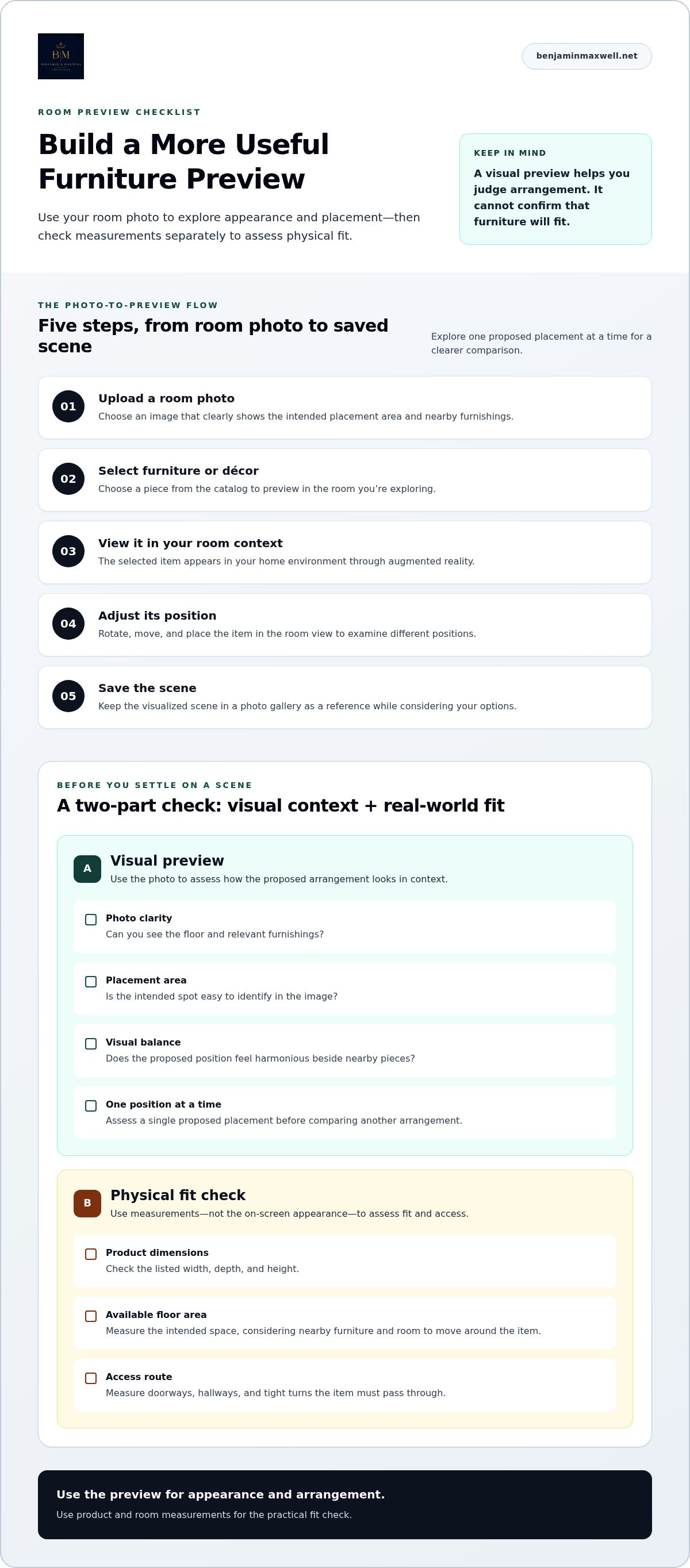
Upload a room photo, select an item, view and adjust it, then save the scene for later.
- Upload: Choose an image that clearly shows the area where you’re considering placing a furnishing.
- Select: Browse the catalog and choose a piece of furniture or décor to preview.
- View: See the selected item in your room environment through augmented reality.
- Adjust: Rotate, move, and place the item within the room view to examine its appearance from different positions.
- Save: Keep the visualized scene in a photo gallery so you can refer to it as you consider your options.
Start with a room photo and select a furnishing
Begin with a photo that clearly shows the intended placement area and nearby furnishings. If you’re considering a chair beside a sofa, for example, include both the open space and enough of the surrounding room to see how the arrangement reads. Then choose an item from the catalog that suits the room you’re exploring. Using your own setting makes the preview more personal than assessing a product in isolation.
Adjust the view and save a scene for later
Once the item appears in the room view, move it to explore alternative placements and rotate it to inspect its presentation. A different position may change how it relates visually to nearby pieces, helping you compare arrangements before moving furniture. Save a scene when you want to revisit a particular idea or weigh it against another option. If you’re looking to test furniture layout in my room with phone, this sequence offers a simple way to turn an idea into a visual reference. The preview supports visual assessment, so compare product and room measurements to judge physical fit.
How to get a more useful furniture preview from your phone
A useful preview begins with a clear reference. Choose a room photo that shows the floor, the intended placement area, and nearby furnishings. Then assess one proposed position at a time. This keeps the composition easier to read and helps you focus on how the piece relates to its surroundings, rather than comparing several arrangements at once.
Prepare the room photo for a clear comparison
Frame the area where you expect the furniture to sit, including enough of the surrounding room to judge its visual balance. If practical, move objects that block the floor or obscure the placement area before taking the photo. A clear view gives you a more helpful reference, though the preview remains a visual aid rather than a precise measurement.
Use the preview alongside measurements
Note the product’s listed dimensions and measure the available floor area independently. Perspective in a photo can make an item appear smaller or larger than it would feel in the room, so don’t rely on the image alone to determine fit. Consider the route into the room separately: measure doorways, hallways, and tight turns that may affect access and placement.
Before settling on a scene, use this quick checklist:
- Photo clarity: Can you see the floor and relevant furnishings?
- Intended placement: Is the selected area easy to identify?
- Visual balance: Does the proposed position feel harmonious beside nearby pieces?
- Product dimensions: Have you compared the listed measurements with the available floor space?
- Access route: Have you considered the doorways and pathways to the room?
These checks make it easier to test furniture layout in my room with phone while keeping visual impressions distinct from practical fit decisions. Use them as you explore the In Home Visualizer and consider a furnishing in your own room context.
Explore furniture in your room and decide what to view next
A saved scene can help you refine your shortlist. Revisit the arrangement and consider whether the piece’s visual presence suits the room, then weigh that impression alongside the item’s listed dimensions and your measurements. The In Home Visualizer connects product discovery with your own room context, so you can return to a preferred idea while browsing furniture and décor.
Turn a saved preview into a considered shortlist
Compare each scene with your practical requirements rather than relying on the image alone. Note which options seem visually balanced, then check each item’s dimensions against the intended floor area and access route. For broader selection criteria, a luxury furniture selection guide can also help you think through the qualities that matter to your home.
Keep your saved scenes as you continue exploring. A visual reference can help you return to a particular placement, distinguish one option from another, and browse with a clearer sense of what you’re seeking. If you want to test furniture layout in my room with phone, use the preview as one part of the decision, with measurements as your practical check.
Take the next step with the In Home Visualizer
Bring a selected catalog item into your home environment and explore how it appears in your room. The preview can help you assess placement and visual character, while your own measurements remain essential to judging fit. Begin with Visualize furniture in your room, then explore the furniture and décor collection for pieces to consider.
Let your room guide your next choice
A considered furnishing decision begins with more than an appealing image. Your room has its own character and practical needs, so let those guide what you explore next. As you test furniture layout in my room with phone, use each preview to consider what feels harmonious, what merits another look, and which pieces may suit the home you’re shaping.
Benjamin & Maxwell’s In Home Visualizer brings photo-based visualization together with augmented reality and 3D interaction, giving you another way to view selected furniture in your surroundings. Saved scenes can be revisited in a photo gallery, keeping ideas close as you reflect.
Explore the In Home Visualizer to preview furniture and décor in your room, then continue discovering pieces that fit your vision.
Frequently Asked Questions
Can I test furniture layout in my room with my phone?
Yes. To test furniture layout in my room with phone, use the In Home Visualizer to work from a room photo, choose furniture or décor, and view your selection in your home environment. For example, you might consider a console in an entryway or a chair beside a living-room sofa. The 3D product viewer lets you explore and adjust the item in the room view.
Do I need to create a floor plan to see furniture in my room?
No. The In Home Visualizer workflow begins with uploading a room photo, rather than drawing a floor plan. You can select an item from the catalog and review it in the room view, making it possible to consider a furnishing in a familiar setting. This photo-based preview isn’t a measured plan, so compare product dimensions with your room measurements before deciding whether the piece will fit.
Can I move or rotate furniture in a room visualizer?
Yes. The 3D product viewer lets you rotate, move, and place items within the room view. These controls help you inspect a selected piece from different positions in the visualization, such as considering how a table looks turned toward a seating area. They’re useful for reviewing visual possibilities, but they don’t establish exact physical dimensions or guarantee that the item will fit in your actual room.
Can I save a furniture layout I create on my phone?
Yes. You can save visualized scenes to a photo gallery and return to them when considering your options. A saved view of a dining table, for instance, can help you recall its overall appearance in the room. Use that image as a visual reference, then separately compare the product’s listed dimensions with your measured space. The gallery provides saved scenes, not a substitute for those measurements.
Is a phone furniture preview accurate enough to confirm a piece will fit?
No. A phone preview can help you assess how selected furniture appears in your room, but it shouldn’t be treated as a measurement guarantee. Check the product’s stated dimensions against the available floor space, including the room you need around the piece. Measure access routes separately, too, such as doorways and hallways, so you can assess whether the item can reach its intended place.

Article by
Spencer Kay
Spencer is the founder and CEO of Benjamin & Maxwell and has created the most advanced technology-based website in the furniture industry. He has extensive experience in both technology and business operations having started a number of technology companies. Spencer holds a BA Degree in Economics and an MBA in International Business
Disclaimer
Benjamin & Maxwell does not intend for any of our products to be used for any specific purpose.


